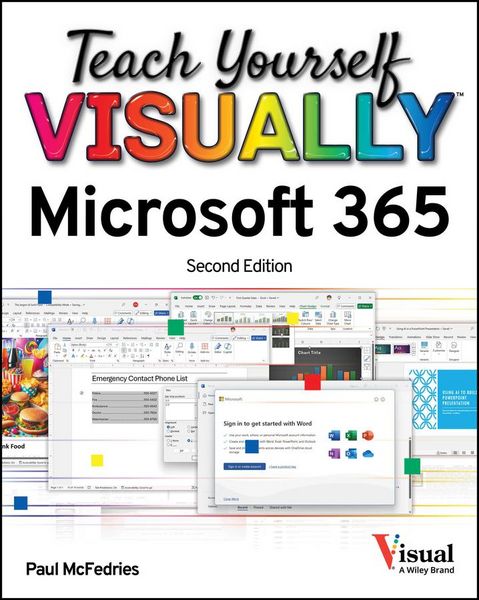
Produktbild: Teach Yourself VISUALLY Microsoft 365

Teach Yourself VISUALLY Microsoft 365

32,99 €

inkl. gesetzl. MwSt., Versandkostenfrei

Lieferung nach Hause

Produktdetails

Einband

Taschenbuch

Erscheinungsdatum

25.03.2025

Verlag

John Wiley & Sons Inc

Seitenzahl

320

Maße (L/B/H)

23,3/18,5/1,8 cm

Gewicht

632 g

Auflage

2. Auflage

Sprache

Englisch

ISBN

978-1-394-29827-3

Produktdetails

Einband

Taschenbuch

Erscheinungsdatum

25.03.2025

Verlag

John Wiley & Sons Inc

Seitenzahl

320

Maße (L/B/H)

23,3/18,5/1,8 cm

Gewicht

632 g

Auflage

2. Auflage

Sprache

Englisch

ISBN

978-1-394-29827-3

Herstelleradresse

Libri GmbH
Europaallee 1
36244 Bad Hersfeld
DE

Email: [email protected]

Kundinnen und Kunden meinen

0 Bewertungen

Informationen zu Bewertungen

Zur Abgabe einer Bewertung ist eine Anmeldung im Konto notwendig. Die Authentizität der Bewertungen wird von uns nicht überprüft. Wir behalten uns vor, Bewertungstexte, die unseren Richtlinien widersprechen, entsprechend zu kürzen oder zu löschen.

Die Bewertungen sind nach Format, Anzahl Sterne und Datum sortiert.

Verfassen Sie die erste Bewertung zu diesem Artikel

Helfen Sie anderen Kund*innen durch Ihre Meinung

Kundinnen und Kunden meinen

0 Bewertungen filtern

Die Leseprobe wird geladen.
  • Produktbild: Teach Yourself VISUALLY Microsoft 365
  • Part I Microsoft 365 Features

    Chapter 1 Microsoft 365 Basics

    Start and Exit Microsoft 365 Apps 4

    Explore the App Window 6

    Work with Backstage View 7

    Change the Color Scheme 8

    Work with the Ribbon 10

    Select Data 12

    Using a Microsoft 365 App with a Touch Screen 14

    Create a New File 16

    Save a File 18

    Open a File 20

    Chapter 2 Microsoft 365 Graphics Tools

    Insert a Picture from Your PC 22

    Insert an Online Picture 24

    Resize and Move Graphic Objects 26

    Understanding Graphics Modification Techniques 28

    Chapter 3 Working with Microsoft 365 Files Online

    Microsoft 365 and the Cloud 30

    Sign In to Microsoft 365 32

    Share a Document from Microsoft 365 34

    Sign In to OneDrive 36

    Using an Online App in OneDrive 38

    Open a Document in a Desktop App from OneDrive 40

    Upload a Document to OneDrive 42

    Chapter 4 Getting AI Assistance with Copilot

    Understanding Copilot 44

    Draft New Text in Word 46

    Rewrite Existing Text 48

    Get Help with a Word Document 50

    Analyze Excel Data 52

    Create Excel Formulas 54

    Draft a PowerPoint Presentation 56

    Create an Image 58

    Part II Word

    Chapter 5 Adding Text

    Change Word's Views 62

    Create Lists 64

    Insert Quick Parts 66

    Insert Symbols 68

    Chapter 6 Formatting Text

    Align Text 70

    Set Line Spacing 71

    Indent Text 72

    Set Tabs 74

    Set Margins 76

    Copy Formatting 78

    Clear Formatting 79

    Format with Styles 80

    Chapter 7 Adding Extra Touches

    Assign a Theme 82

    Add Borders 84

    Create Columns 86

    Insert a Table 88

    Apply Table Styles 90

    Insert Table Rows or Columns 91

    Add Headers and Footers 92

    Chapter 8 Reviewing Documents

    Work in Read Mode View 94

    Find and Replace Text 98

    Navigate Document Content 100

    Check Spelling and Grammar 102

    Customize AutoCorrect 104

    Using Word's Thesaurus and Dictionary 106

    Translate Text 108

    Track and Review Document Changes 110

    Lock and Unlock Tracking 112

    Part III Excel

    Chapter 9 Building Spreadsheets

    Enter Cell Data 116

    Select Cells 118

    Using AutoFill for Faster Data Entry 120

    Turn On Text Wrapping 122

    Center Data Across Columns 123

    Adjust Cell Alignment 124

    Change the Font and Font Size 126

    Change Number Formats 128

    Increase or Decrease Decimals 129

    Add Cell Borders and Shading 130

    Format Data with Styles 132

    Apply Conditional Formatting 134

    Insert Rows and Columns 136

    Resize Columns and Rows 138

    Freeze Column and Row Titles On-Screen 139

    Name a Range 140

    Clear or Delete Cells 142

    Chapter 10 Worksheet Basics

    Add a Worksheet 144

    Rename a Worksheet 145

    Move or Copy Worksheets 146

    Delete a Worksheet 147

    Find and Replace Data 148

    Create a Table 150

    Filter or Sort Table Information 152

    Analyze Data Quickly 154

    Understanding Data Analysis Choices 155

    Chapter 11 Working with Formulas and Functions

    Understanding Formulas 156

    Create a Formula 158

    Apply Absolute and Relative Cell References 160

    Understanding Functions 162

    Insert a Function 164

    Total Cells with AutoSum 166

    Chapter 12 Working with Charts

    Create a Chart 168

    Move and Resize a Chart 170

    Change the Chart Type 172

    Change the Chart Style 173

    Change the Chart Layout 174

    Add Chart Elements 175

    Format Chart Elements 176

    Change the Chart Data 177

    Part IV PowerPoint

    Chapter 13 Creating a Presentation

    Create a New Presentation 180

    Create a Photo Album Presentation 182

    Change PowerPoint Views 184

    Insert Slides 186

    Change the Slide Layout 188

    Chapter 14 Populating Presentation Slides

    Add and Edit Slide Text 190

    Change the Font, Size, and Color 192

    Apply a Theme 196

    Set Line Spacing 197

    Align Text 198

    Add a Text Box to a Slide 199

    Add a Table to a Slide 200

    Add a Chart to a Slide 202

    Add a Video Clip to a Slide 204

    Move a Slide Object 206

    Resize a Slide Object 207

    Reorganize Slides 208

    Chapter 15 Assembling and Presenting a Slide Show

    Reuse a Slide 210

    Organize Slides into Sections 212

    Define Slide Transitions 214

    Add Animation Effects 216

    Create a Custom Animation 218

    Record Narration 220

    Insert a Background Song 221

    Create Speaker Notes 222

    Rehearse a Slide Show 224

    Run a Slide Show 226

    Part V Access

    Chapter 16 Database Basics

    Understanding Database Basics 232

    Create a Database Based on a Template 234

    Create a Blank Database 236

    Create a New Table 238

    Change Table Views 240

    Add a Field to a Table 242

    Delete a Field from a Table 243

    Hide a Field in a Table 244

    Move a Field in a Table 245

    Create a Form 246

    Change Form Views 248

    Move a Field in a Form 249

    Delete a Field in a Form 250

    Format Form Fields 251

    Chapter 17 Adding, Finding, and Querying Data

    Add Records to a Table 252

    Add a Record Using a Form 254

    Navigate Records Using a Form 256

    Search for a Record Using a Form 257

    Delete a Record from a Table 258

    Delete a Record Using a Form 259

    Sort Records 260

    Filter Records 262

    Perform a Simple Query 264

    Part VI Outlook

    Chapter 18 Organizing with Outlook

    Navigate in Outlook 270

    Schedule an Event 272

    Create a New Contact 274

    Create a New Task 276

    Chapter 19 E-Mailing with Outlook

    Compose and Send a Message 278

    Send a File Attachment 280

    Read an Incoming Message 281

    Reply to or Forward a Message 282

    Add a Sender to Your Outlook Contacts 284

    Delete a Message 285

    Screen Junk E-Mail 286

    Create a Message Rule 288

    Index 290