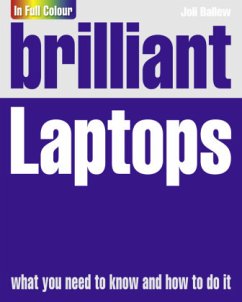
Brilliant Laptops
Versandkostenfrei!
Versandfertig in 2-4 Wochen
24,99 €
inkl. MwSt.

PAYBACK Punkte
12 °P sammeln!

Everything you need to know to choose and use your laptop and its software.
Brilliant Laptops guides you through the essential tasks step-by-step, showing you how to:
· Choose and purchase a laptop or netbook
· Understand and use Windows 7, its applications and other software
· Connect to the Internet via wireless and wired networks
Install and manage hardware and software
· Stay safe and secure at home and on the road
Brilliant books provide quick and easy-to-access information. Features include:
Detailed contents page
Numbered step-by-step tasks
Visual full colour screenshots
Expert tips, tricks & advice
Practical troubleshooting guide
Backcover
Everything you need to know to choose and use your laptop.
Brilliant Laptops guides you through the essential tasks step-by-step, showing you how to:
Choose the right laptop for you
Understand and use Windows 7, its applications and other software
Connect to the Internet via wireless and wired networks
Choose and install monitors, printers and webcams
Keep your laptop safe and secure at home and on the road
Manage power and battery life
Maintain your laptop and optimise its performance
Brilliant books provide quick and easy-to-access information. Features include:
Detailed contents page
Numbered step-by-step tasks
Visual full colour screenshots
Expert tips, tricks & advice
Practical troubleshooting guide
Introduction
1. Introduction to netbooks and laptops
Distinguish between laptops and netbooks
The operating system
Additional components
Whats missing
Overcoming laptop and netbook limitations
Explore Windows 7
Explore the Getting Started window
Utilise new Windows 7 features
Explore Windows 7 programs
How to best personalise your laptop or netbook
Know the programs you need to obtain
How to clean up a new netbook or laptop
2. Exploring the outside of laptops and netbooks
Explore basic hardware
Locating and using your Wi-Fi button
Locating and using the SD card slot
Explore hardware generally found only on laptops
Bluetooth and batteries
3. Exploring the inside
Basic functionality
Using the touchpad and the keyboard
Keys common to most keyboards
4. Getting started with Windows 7
Know your Windows 7 edition
Explore the Desktop
Discover Windows 7 applications
Personalise Windows 7
Understand the library structure in Windows 7
Personal and public folders
Search folders
Shut down Windows 7 safely
5. Join a public or home Wi-Fi network
Get online through a hotspot
Mobility Center
Explore the Network and Sharing Center
Manage wireless networks
Consider always-available Internet
6. Connect and share with a home network
Connect with Ethernet
Configure sharing
Utilise the Public folders
Personal folder sharing
Work with files and folders
Copy, move and delete files
Create a homegroup
Find out what you can access on the network
7. Surf the Internet
Explore the interface
Explore tabbed browsing
Set a home page
Mark a Favorite
Use accelerators
Work with web slices
Use RSS
Stay safe online
Get rid of unnecessary add-ons
8. Use Windows Live Essentials
Get Windows Live Essentials
Sign in with your new Windows Live ID
Personalise your Windows Live Home Page
Use SkyDrive
9. Windows Live Mail
Set up an email address
Read, compose, send and more
Manage contacts
Deal with unwanted email
Keep Live Mail clean and tidy
10. Windows Live Photo Gallery
Explore the interface
Import pictures and video
Adjust image quality
Tag photos
Share photos and videos
Manage photo files
11. Video messaging with Windows Live Messenger
Discover your webcam
Open and sign into Windows Live Messenger
Set up audio and video devices
Add a contact
Have a video conversation
Consider SkypeTM
12. Windows Media Player and Media Center
Play music in Media Player
Play music in Media Center
View other media in Media Player
Rip and burn music with Media Player
Watch Internet TV using Windows Media Center
View a slide show of pictures in Media Center
Explore other Media Center options
13. Install and manage hardware
Install a printer
Install a digital camera
Troubleshoot drivers
Update a device driver
Use Device Driver Rollback
Use Ready Boost to increase performance
Manage power options
Manage sleep and hibernate options
Edit a power plan
Manage connected devices
14. Install software
Explore installation options
Install a program from the Internet
Install and use a CD/DVD drive
Share a network drive
Copy installation files to a USB drive
15. Safety and security
Know whats available
User accounts and passwords
Utilise system utilities
Resolve Action Center warnings
Use System Restore
16. Backing up and syncing data
Explore backup options
Use Windows Backup and Restore
Drag and drop to an external drive
Drag and drop to a network drive
Explore sync options
Explore syncing software
17. Explore online storage
Store photos with Facebook and Flickr
Store data with SkyDrive
Explore additional online resources
Appendix A: Choose a laptop or netbook
Things to consider
Shopping checklist
Choosing a rugged laptop
Extended warranties
Jargon buster
Troubleshooting guide
Brilliant Laptops guides you through the essential tasks step-by-step, showing you how to:
· Choose and purchase a laptop or netbook
· Understand and use Windows 7, its applications and other software
· Connect to the Internet via wireless and wired networks
Install and manage hardware and software
· Stay safe and secure at home and on the road
Brilliant books provide quick and easy-to-access information. Features include:
Detailed contents page
Numbered step-by-step tasks
Visual full colour screenshots
Expert tips, tricks & advice
Practical troubleshooting guide
Backcover
Everything you need to know to choose and use your laptop.
Brilliant Laptops guides you through the essential tasks step-by-step, showing you how to:
Choose the right laptop for you
Understand and use Windows 7, its applications and other software
Connect to the Internet via wireless and wired networks
Choose and install monitors, printers and webcams
Keep your laptop safe and secure at home and on the road
Manage power and battery life
Maintain your laptop and optimise its performance
Brilliant books provide quick and easy-to-access information. Features include:
Detailed contents page
Numbered step-by-step tasks
Visual full colour screenshots
Expert tips, tricks & advice
Practical troubleshooting guide
Introduction
1. Introduction to netbooks and laptops
Distinguish between laptops and netbooks
The operating system
Additional components
Whats missing
Overcoming laptop and netbook limitations
Explore Windows 7
Explore the Getting Started window
Utilise new Windows 7 features
Explore Windows 7 programs
How to best personalise your laptop or netbook
Know the programs you need to obtain
How to clean up a new netbook or laptop
2. Exploring the outside of laptops and netbooks
Explore basic hardware
Locating and using your Wi-Fi button
Locating and using the SD card slot
Explore hardware generally found only on laptops
Bluetooth and batteries
3. Exploring the inside
Basic functionality
Using the touchpad and the keyboard
Keys common to most keyboards
4. Getting started with Windows 7
Know your Windows 7 edition
Explore the Desktop
Discover Windows 7 applications
Personalise Windows 7
Understand the library structure in Windows 7
Personal and public folders
Search folders
Shut down Windows 7 safely
5. Join a public or home Wi-Fi network
Get online through a hotspot
Mobility Center
Explore the Network and Sharing Center
Manage wireless networks
Consider always-available Internet
6. Connect and share with a home network
Connect with Ethernet
Configure sharing
Utilise the Public folders
Personal folder sharing
Work with files and folders
Copy, move and delete files
Create a homegroup
Find out what you can access on the network
7. Surf the Internet
Explore the interface
Explore tabbed browsing
Set a home page
Mark a Favorite
Use accelerators
Work with web slices
Use RSS
Stay safe online
Get rid of unnecessary add-ons
8. Use Windows Live Essentials
Get Windows Live Essentials
Sign in with your new Windows Live ID
Personalise your Windows Live Home Page
Use SkyDrive
9. Windows Live Mail
Set up an email address
Read, compose, send and more
Manage contacts
Deal with unwanted email
Keep Live Mail clean and tidy
10. Windows Live Photo Gallery
Explore the interface
Import pictures and video
Adjust image quality
Tag photos
Share photos and videos
Manage photo files
11. Video messaging with Windows Live Messenger
Discover your webcam
Open and sign into Windows Live Messenger
Set up audio and video devices
Add a contact
Have a video conversation
Consider SkypeTM
12. Windows Media Player and Media Center
Play music in Media Player
Play music in Media Center
View other media in Media Player
Rip and burn music with Media Player
Watch Internet TV using Windows Media Center
View a slide show of pictures in Media Center
Explore other Media Center options
13. Install and manage hardware
Install a printer
Install a digital camera
Troubleshoot drivers
Update a device driver
Use Device Driver Rollback
Use Ready Boost to increase performance
Manage power options
Manage sleep and hibernate options
Edit a power plan
Manage connected devices
14. Install software
Explore installation options
Install a program from the Internet
Install and use a CD/DVD drive
Share a network drive
Copy installation files to a USB drive
15. Safety and security
Know whats available
User accounts and passwords
Utilise system utilities
Resolve Action Center warnings
Use System Restore
16. Backing up and syncing data
Explore backup options
Use Windows Backup and Restore
Drag and drop to an external drive
Drag and drop to a network drive
Explore sync options
Explore syncing software
17. Explore online storage
Store photos with Facebook and Flickr
Store data with SkyDrive
Explore additional online resources
Appendix A: Choose a laptop or netbook
Things to consider
Shopping checklist
Choosing a rugged laptop
Extended warranties
Jargon buster
Troubleshooting guide
Everything you need to know to choose and use your laptop.
Brilliant Laptops guides you through the essential tasks step-by-step, showing you how to:
Choose the right laptop for you
Understand and use Windows 7, its applications and other software
Connect to the Internet via wireless and wired networks
Choose and install monitors, printers and webcams
Keep your laptop safe and secure at home and on the road
Manage power and battery life
Maintain your laptop and optimise its performance
Brilliant books provide quick and easy-to-access information. Features include:
Detailed contents page
Numbered step-by-step tasks
Visual full colour screenshots
Expert tips, tricks & advice
Practical troubleshooting guide
Brilliant Laptops guides you through the essential tasks step-by-step, showing you how to:
Choose the right laptop for you
Understand and use Windows 7, its applications and other software
Connect to the Internet via wireless and wired networks
Choose and install monitors, printers and webcams
Keep your laptop safe and secure at home and on the road
Manage power and battery life
Maintain your laptop and optimise its performance
Brilliant books provide quick and easy-to-access information. Features include:
Detailed contents page
Numbered step-by-step tasks
Visual full colour screenshots
Expert tips, tricks & advice
Practical troubleshooting guide